
Banks renew their public EBICS bank keys at regular intervals and announce this in advance by letter. So that konfipay can continue to communicate with your bank, the new bank keys must be retrieved. If automation is activated, konfipay does this by itself - as a rule, you do not need to do anything. This page describes what happens when the keys change and how to start the retrieval yourself if necessary.
What happens when the keys change
On a set date, your bank replaces its public EBICS keys. From that point on, konfipay must know the new keys - otherwise retrievals and payment transfers are rejected by the bank computer.
Nothing changes for your own EBICS keys:
-
The EBICS contact does not need to be reinitialized.
-
You do not need to create a new Ini letter and send it to your bank.
-
The letter or PDF from your bank is not uploaded or entered into konfipay. No values need to be entered manually.
Automatic retrieval
If automation is set up, konfipay retrieves the bank keys automatically once a day. Two requirements must be met for this:
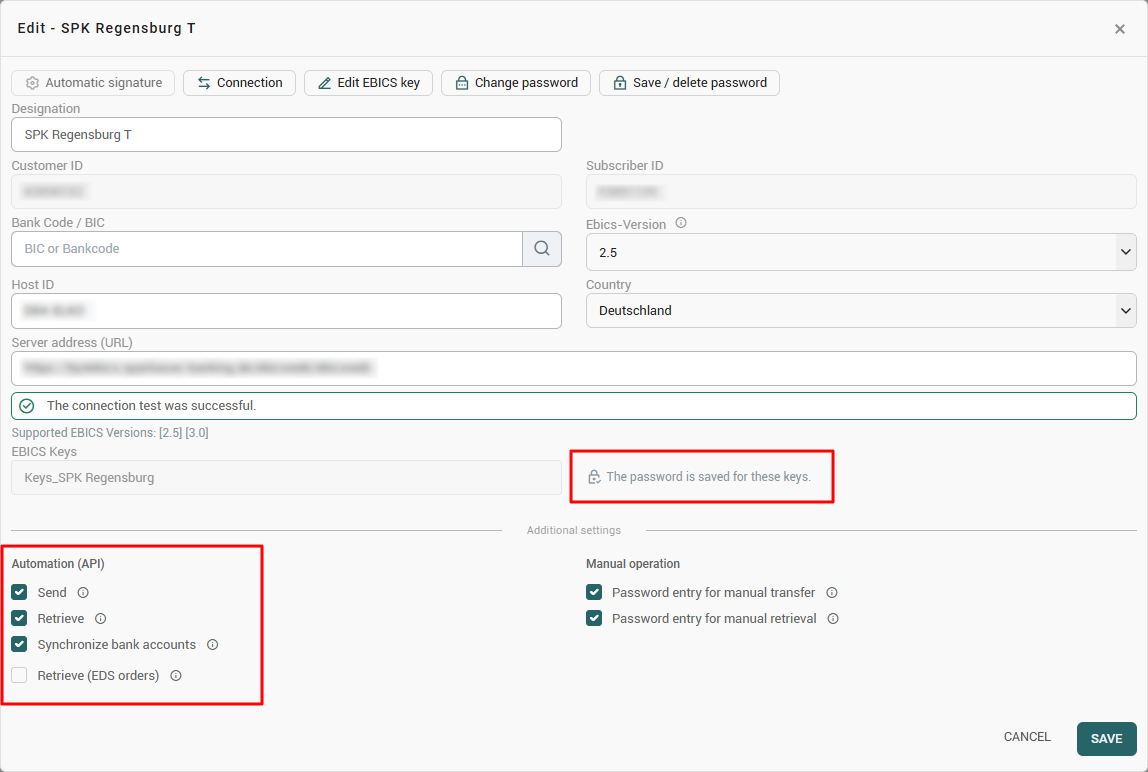
For the EBICS contact, automation must be activated and the EBICS password for the EBICS key used must be saved. You can check both under Master data > EBICS: select the EBICS contact and click on Edit in the toolbar at the top. Whether the password is saved is shown by the note next to the EBICS keys field. In the automation settings in the lower section of the editing window, at least one of the actions Send, Retrieve, Synchronize bank accounts or Retrieve (EDS orders) must be activated.
In the automation, the task Bank key retrieval must be activated. You will find it in the administration area in the navigation bar on the left under Automation.
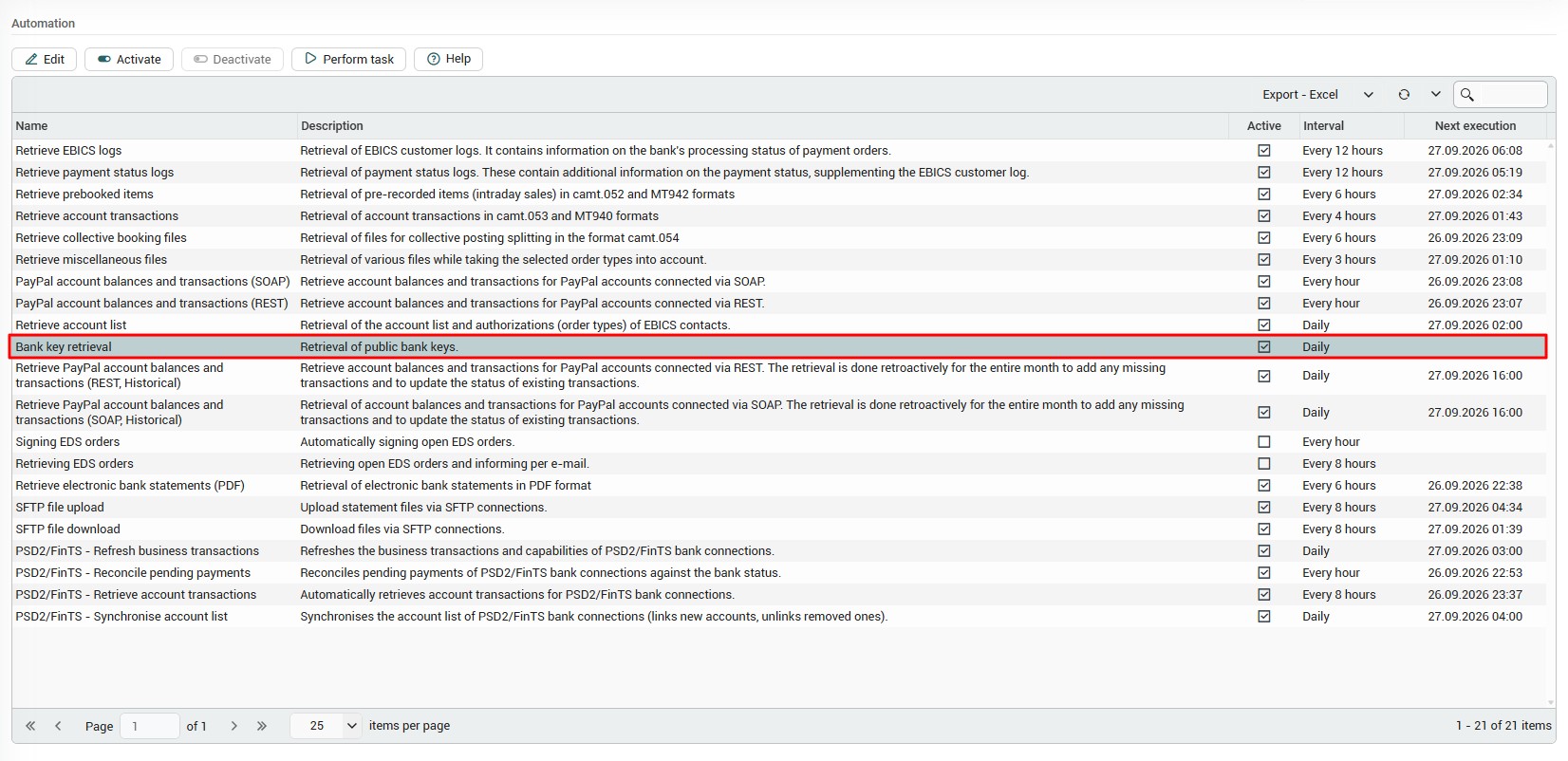
If both requirements are met, you do not need to do anything when the keys change. If the bank makes the switch in the middle of the working day, the automatic run may not take effect until later - in that case you can start the retrieval yourself at any time.
Option A: Retrieve all EBICS contacts at once
This option starts the retrieval for all automated EBICS contacts at the same time and is the quickest variant if you use several contacts. It has the same requirements as the automatic retrieval.
-
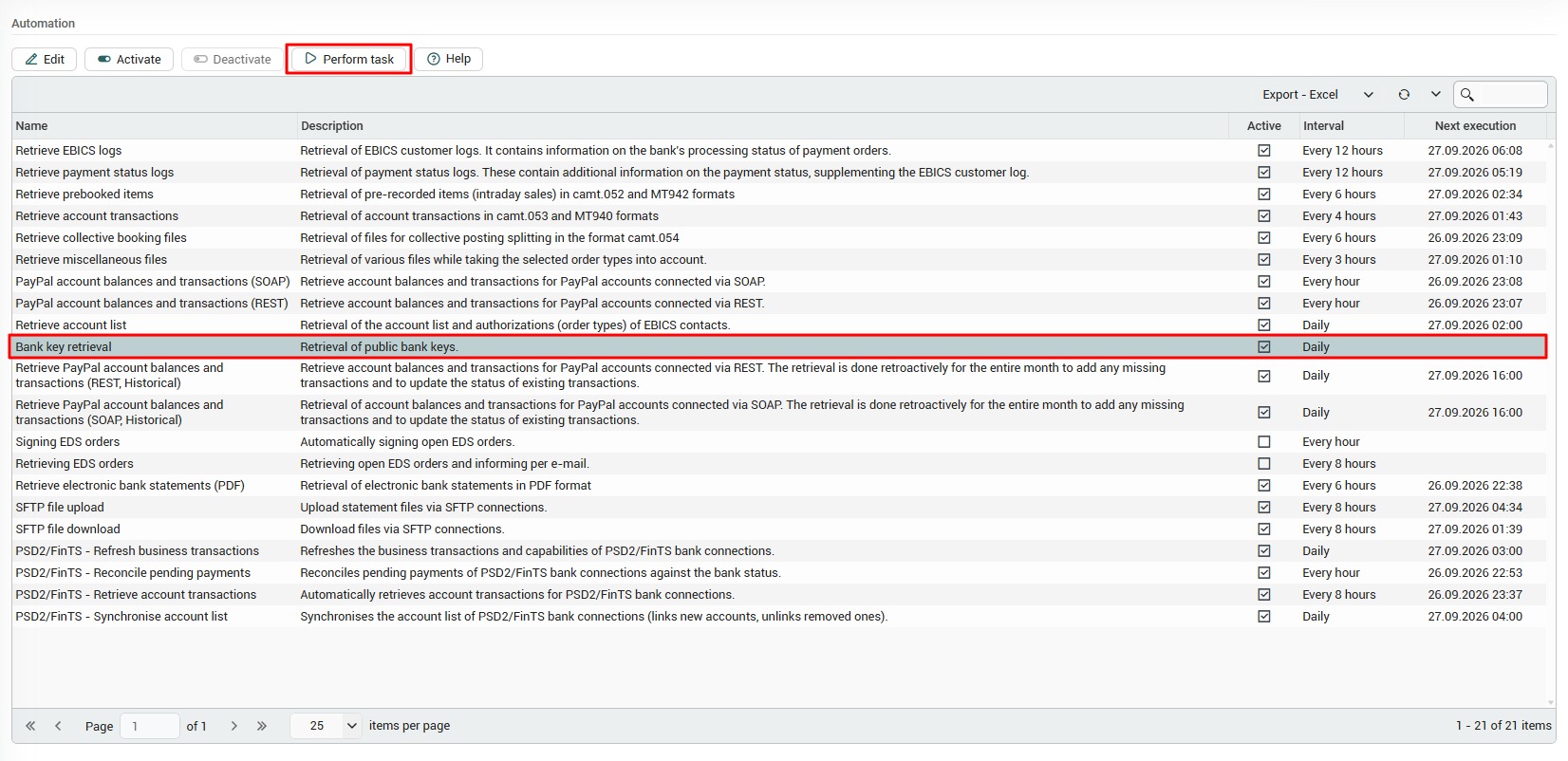
Go to the administration area and click on
Automationin the navigation bar on the left. -
Select the task
Bank key retrievalin the list. -
Click on
Perform taskin the toolbar at the top.
The retrieval then runs once outside the regular cycle. The table also shows you the interval that is set and the next scheduled execution.
Option B: Retrieve a single EBICS contact
Use this option for a single contact, and whenever automation is not active for the contact or the EBICS password has not been saved.
-
Open
Master data>EBICS. -
Select the relevant EBICS contact in the list.
-
Click on
Setupin the toolbar at the top. -
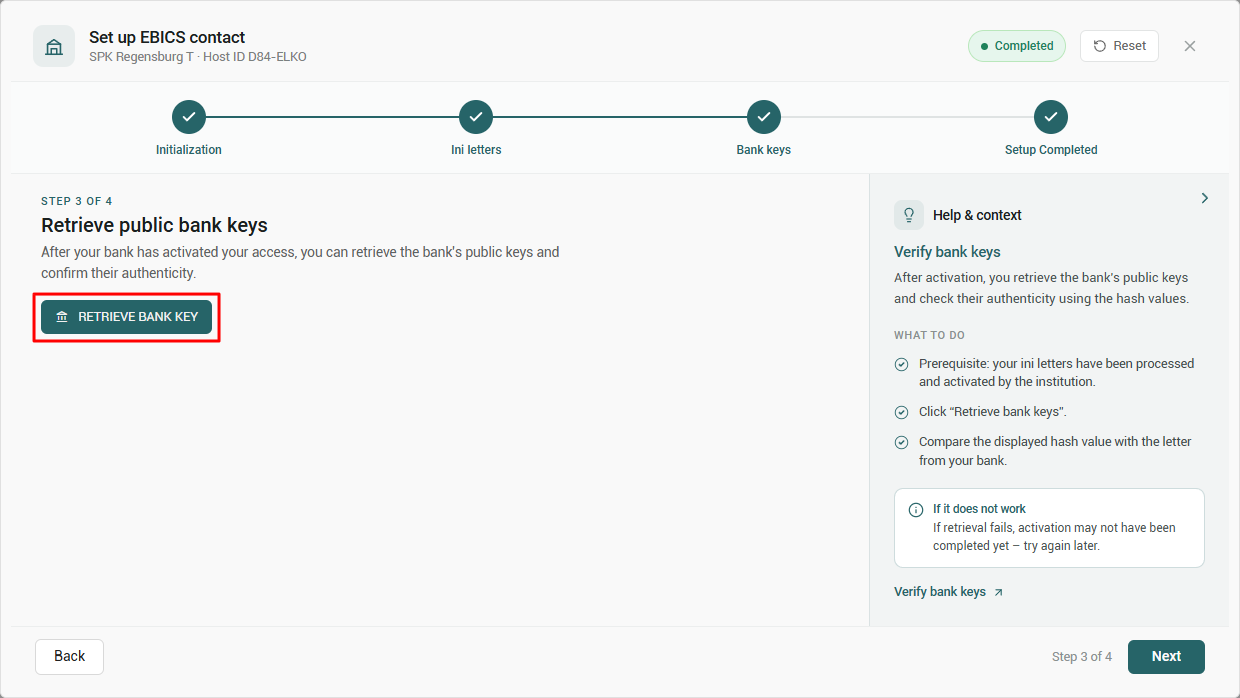
In the wizard, go to the bank key step and click on
Retrieve bank key.
Depending on the configuration, you will be prompted to enter the EBICS password. Depending on the bank, the process may take a moment.
If the retrieval does not take effect
-
If the retrieval fails or no new keys arrive, the bank has probably not activated the switch yet. Start the retrieval again from the stated validity date.
-
If a contact does not appear in the retrieval via the automation, automation is not active for it or the EBICS password has not been saved. Use option B for this contact.
-
If payments or retrievals continue to be rejected by the bank, retrieve the bank keys for the affected contact manually via option B.
If that does not help, check in the communication protocol whether the bank key retrieval took place at all. The retrieval runs under the EBICS order type HPB.
To do this, open Master data > EBICS, select the contact and click on Logs > Communication logs in the toolbar at the top. Limit the period using From and To and search for HPB on the right. A green status symbol means that the bank key was retrieved successfully.