
Navigation in konfipay
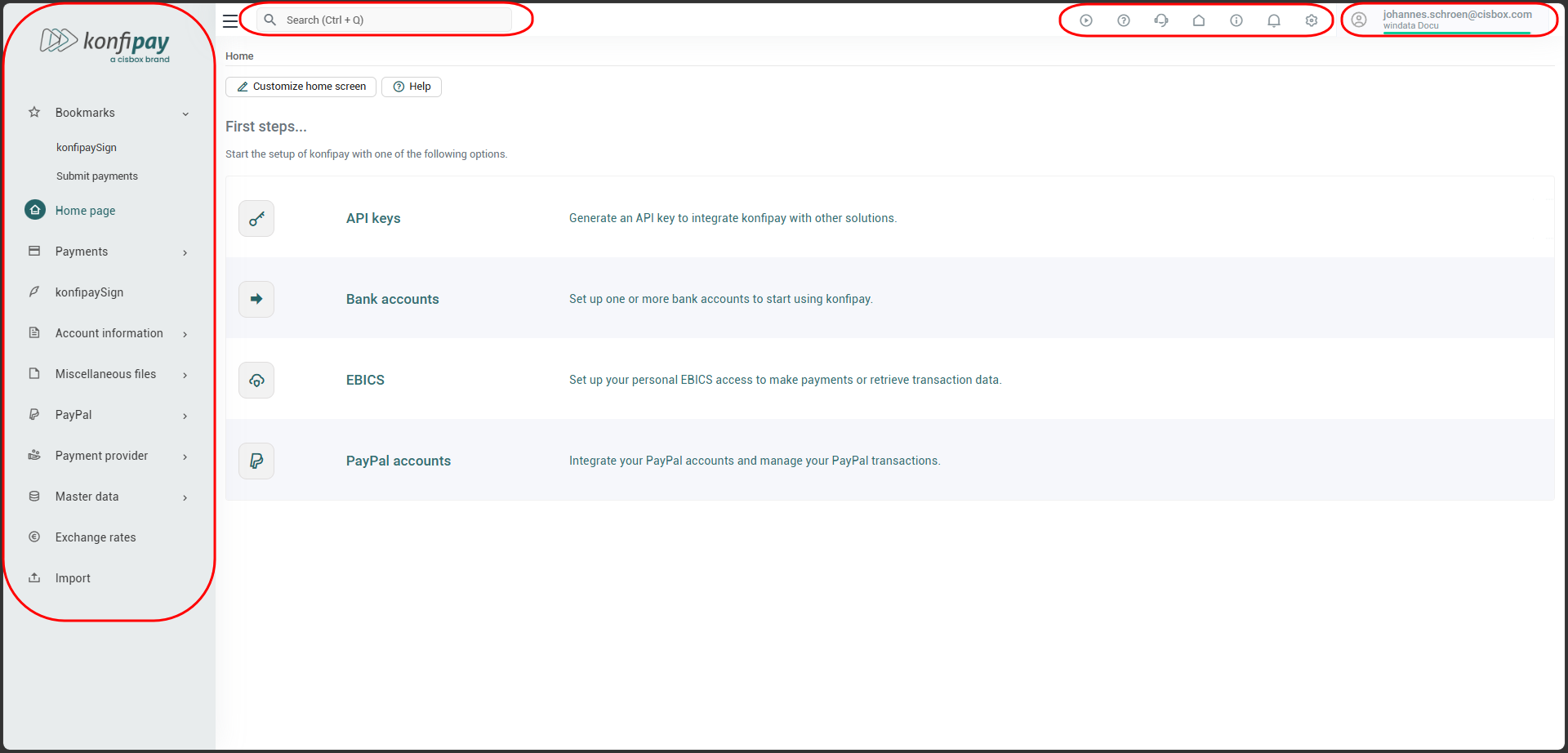
konfipay is designed so that you can always find your way around quickly. The user interface consists of two central navigation areas: the navigation bar on the left edge of the screen, through which you reach all program functions, and the page header at the top, which gives you access to cross-cutting functions such as tasks, help, notifications and your account. These are complemented by the search functionality, with which you can find every function and every data record directly. Click on your email address in the upper-right corner to open your user-specific settings.
Navigation bar (left)
Via the navigation bar on the left edge of the screen, you reach all program functions of konfipay (or, if you are in the administration area, the navigation bar gives you access to the administration functions). Simply click the desired entry to open the corresponding area; the area currently open is highlighted in the bar. Entries with an arrow (›) have sub-items and expand when clicked: for example, you can get from Master data to Bank accounts, or from Account information to Account transactions.
Using the menu icon (☰) at the top left, you can collapse and expand the navigation bar at any time to create more room for the work area.
Favourites
So that you can reach frequently used functions even faster, you can store them as favourites in the navigation bar. To do so, move the mouse pointer over the desired entry and click the star icon to its right. The entry is then shown under Favourites at the top of the navigation bar, so that you can call it up at any time with a single click. To remove a function from your favourites again, click the x icon next to the entry under Favourites.
Page header (top)
In the page header at the top edge of the screen, you will find the menu icon and the search bar on the left, and on the right a row of icons for cross-cutting functions as well as your email address and the client you are currently logged in to. These functions are available to you everywhere in konfipay.
Tasks
Via the Tasks icon, you can see the processes currently running in konfipay – for example, an ongoing retrieval of account transactions or an ongoing payment submission. Only tasks that are currently running are displayed; completed processes do not appear here.
Help
If you need help while using konfipay, you can reach it at any time via the page header. The question mark icon takes you to the konfipay Help Center with all documentation articles, as well as to the Release history with information about konfipay updates. Using the customer service icon (person with headset), you can either download the FastViewer client for a remote session with a konfipay customer advisor or open a support ticket.
You can find out more in the article Help page.
Switching clients
If you have access to several clients, you can switch between them at any time. To do so, click the home icon in the page header and then select the client you want to switch to. The client you are currently logged in to is shown at the top right next to your email address.
Info
Via the info icon (i), you can find further information about konfipay, e.g. the version number and the legal notice.
Notifications
konfipay informs you about in-app events – for example, when account transactions have been retrieved successfully or a payment submission has failed. You can call up new and past notifications at any time via the bell. A red dot on the bell indicates that there is an unread notification.
Administration
Via the gear icon, you reach the administration area – the central management area of your client, for example for user management, automation or settings. You leave the administration area again via the menu icon or the navigation bar.
My account
On the far right of the page header, you will find your email address with the user icon. Click it to access your user-specific settings. From here you can reach, among other things, My account (information and security settings for your user account) and Personal settings (language, display, colours and more).
Search functionality
With the search functionality, you can orient yourself within konfipay at any time. You use it to search for program functions – including the administration functions – and call them up directly, and at the same time you search the data records of your client for keywords.
Call up the search at any time with the keyboard shortcut Ctrl + Q, or click the search bar at the top (Search (Ctrl + Q)). The search for program functions and file contents is performed simultaneously; the results are broken down by category and shown with their respective total count. To see all results in a category, click Show all. Click a search result to navigate directly to it.
When searching for file contents, the following elements are searched:
-
Account transactions
-
Bulk payments
-
Individual payments
-
Bank accounts
-
Payment partners
-
PayPal transactions
You can find further details in the article Search functionality.