
An SFTP connection is created under Master data > SFTP connections using Add. The Anlegen/Bearbeiten/Aktivieren permission is required in order to create and edit connections; without this permission, the fields are displayed in read-only mode.
“General” tab
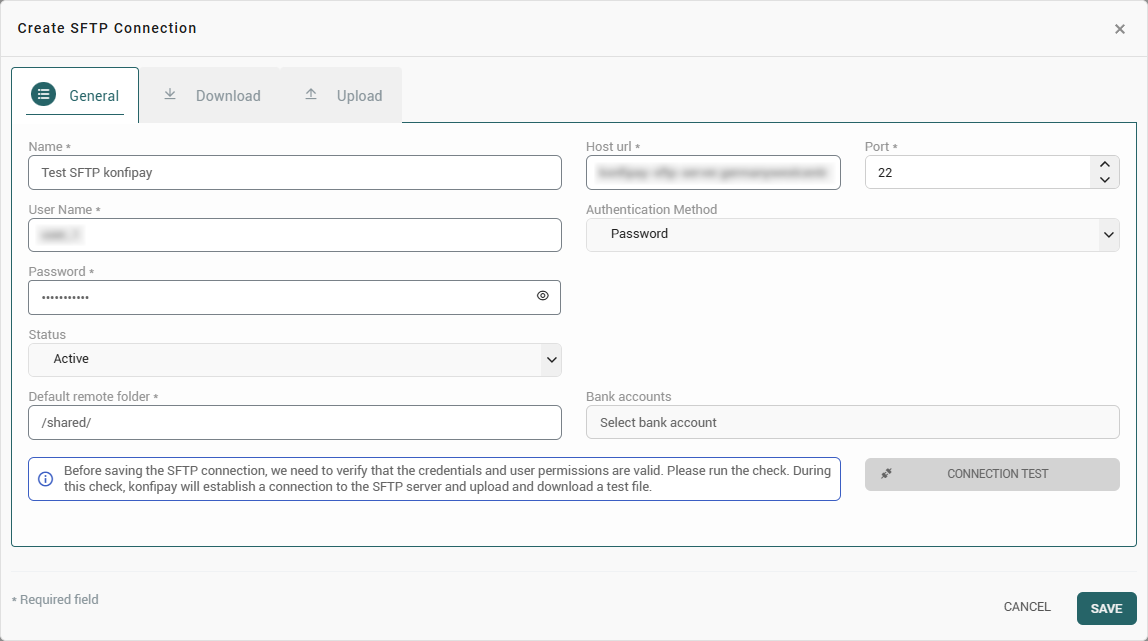
This tab holds the access details and, where applicable, the bank account assignment.
|
Field |
Meaning |
|---|---|
|
Name |
Freely selectable designation under which the connection appears in lists and logs. A descriptive designation makes assignment easier when several connections exist. |
|
Host URL |
Address of the SFTP server, for example |
|
Port |
Port of the SFTP service. Port 22 is customary; any deviating port is specified by the operator of the server. |
|
User name |
User account on the SFTP server. |
|
Authentication method |
Determines how konfipay logs on to the server: Password, Private key or Private key with passphrase. Depending on the selection, the fields Password and Private key are displayed. |
|
Status |
Active or Inactive. Only active connections are available for selection in the channel configuration of a bank account. |
|
Default remote folder |
Folder that serves as the starting point of the connection and is used for the connection test. The paths for retrieval and transfer are defined separately in the respective tabs. |
|
Bank accounts |
Assigns bank accounts to the connection. The assignment is a prerequisite for SFTP to be selectable as the channel of a bank account and determines which transaction files are transferred. |
For logon by key, the private key is stored in PEM format, including the header and footer (-----BEGIN PRIVATE KEY----- to -----END PRIVATE KEY-----). If the key is protected by a passphrase, the Private key with passphrase method is selected and the passphrase is entered in the Password field. Stored passwords, keys and passphrases are saved in encrypted form and are not displayed again.
Connection test
Before saving, the connection should be checked using Connection test. konfipay establishes a connection to the SFTP server and places a test file there, which is then retrieved again. This checks not only the logon but also the write and read permissions in the specified directory. A notice is displayed during the check; the result then appears together with a summary of the log messages, which in the event of an error names the cause – for example a rejected logon, an unreachable host or a missing write permission.
Server fingerprint
When a connection is established successfully for the first time, konfipay stores the fingerprint of the server key and checks it on every further connection. This detects whether a server other than the one originally stored is passing itself off as that server. The stored fingerprint is displayed in the Server fingerprint field of the existing connection.
If the operator has in fact changed the server key, transfers fail with a corresponding message until the fingerprint is discarded using Reset fingerprint. The new fingerprint is stored the next time a connection is established successfully.
Resetting is only appropriate if the change of the server key is known and has been confirmed with the operator of the server. Otherwise the cause should be clarified before further data is transferred.
Change authentication
If the password or key expires, the logon data is not updated in the General tab but using Change authentication in the toolbar. There, the authentication method can be changed and a new password, a new private key or a new passphrase can be stored.
Suspending or deleting a connection
If a connection is temporarily not required, it can be set to Inactive via the Status; the configuration is retained. Using Delete, selected connections are permanently removed after confirmation.
Next steps
Once the connection has been created, the required transfer directions are configured in the corresponding tabs: Configure SFTP download and Configure SFTP upload.