
This setting is available only to administrators of a client
Microsoft SSO (Single Sign-On) allows users in your tenant to sign in to konfipay using their existing Microsoft account instead of their separate konfipay password. Configuration is done centrally at the tenant level and applies to all users in the tenant.
Manage Microsoft SSO for your tenant by clicking Manage under Microsoft SSO Tenant IDs on the Administration home page.
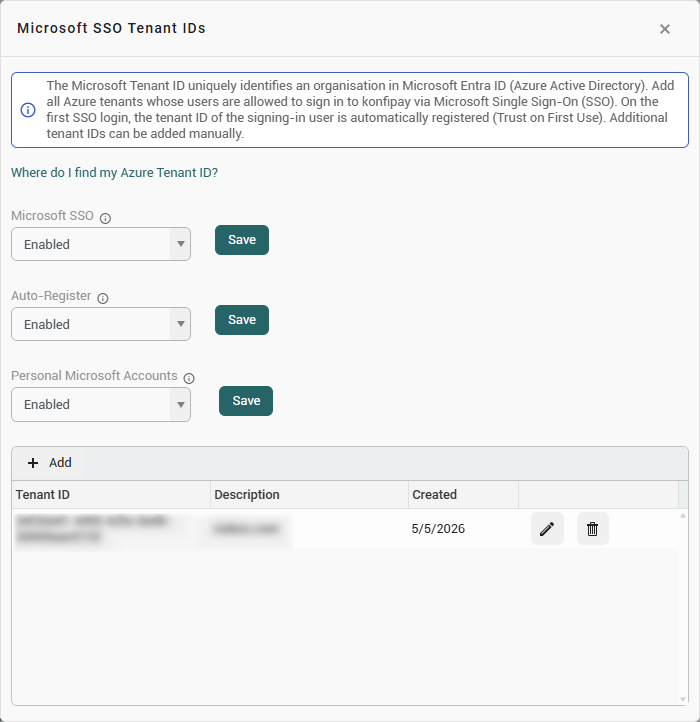
Set login mode
The Microsoft SSO setting allows you to specify how Microsoft sign-in is available for your tenant:
|
Mode |
Description |
|---|---|
|
Disabled |
Microsoft SSO is turned off. All users log in using only their email address and password. |
|
Enabled |
Microsoft SSO is optional. Users can choose to log in using either Microsoft or their email address and password. |
|
Required |
Microsoft SSO is the only allowed login method. Logging in with an email address and password is disabled for all users in the tenant. |
Important note about “Required”: If you enable this mode, login via email and password will be immediately disabled for all users in this tenant—including your own account. Make sure that all users have a valid Microsoft account before enabling this option.
Auto-register
The Auto-Registration setting appears as soon as the login mode is set to Enabled or Required. It determines whether new Azure tenant IDs are automatically marked as trusted upon the first login or must be manually entered in advance.
|
Value |
Description |
|---|---|
|
Enabled |
The first tenant ID that logs in via Microsoft is automatically classified as trusted and added to the list (Trust on First Use). All other tenant IDs that have not yet been added are treated as untrusted—the login is blocked. These must be manually added to the tenant ID list. |
|
Disabled |
Each tenant ID must be manually added to the list in advance. As long as a tenant ID is not listed, users from that organization cannot log in via Microsoft. |
If auto-registration is disabled and no Azure tenant IDs have been entered yet, users cannot sign in via Microsoft. In this case, konfipay will notify you of the incorrect configuration.
Personal Microsoft accounts
The setting Personal Microsoft Accounts appears as soon as the sign-in mode is set to Enabled or Required. It controls whether users are allowed to sign in with a personal Microsoft account (@outlook.com, @hotmail.com, @live.com, etc.).
|
Value |
Description |
|---|---|
|
Enabled |
Users with a personal Microsoft account can sign in. There is no need to enter a tenant ID manually. |
|
Disabled |
Sign-in with personal Microsoft accounts is disabled. Only accounts from a registered organization (Azure AD / Microsoft Entra ID) are permitted. |
Background: Personal Microsoft accounts share a single global tenant ID, which Microsoft uses for all personal accounts. This global tenant ID cannot therefore be managed in the table in the same way as an organization-specific tenant ID—doing so would grant all personal Microsoft accounts worldwide access. The Personal Microsoft Accounts setting allows for targeted, separate control of this access.
Azure Tenant IDs
The Microsoft SSO Tenant IDs table appears as soon as the sign-in mode is set to Enabled or Required. All trusted Microsoft organizations (Azure AD tenants) are managed here.
Only users whose Microsoft account belongs to a tenant ID listed here can sign in using Microsoft SSO.
Columns
|
Column |
Description |
|---|---|
|
Tenant ID |
The Azure AD tenant ID for your Microsoft organization (in UUID format, e.g., |
|
Description |
Optional free-form text describing the entry (e.g., “Production client”). |
|
Created |
Date on which the entry was created (read-only). |
Managing entries
-
Add: Click the plus icon in the table toolbar to enter a new tenant ID.
-
Edit: Click the pencil icon in the corresponding row.
-
Delete: Click the trash can icon. A confirmation prompt will appear before the item is permanently deleted.
Finding out your Azure Tenant ID
You can find your Microsoft organization's tenant ID in the Azure portal. Microsoft provides instructions on how to find the ID here.